AI
Copilot and AI
The investigation Copilot, AI triage and drafting, choosing an AI provider, and connecting AI clients over MCP.
Copilot
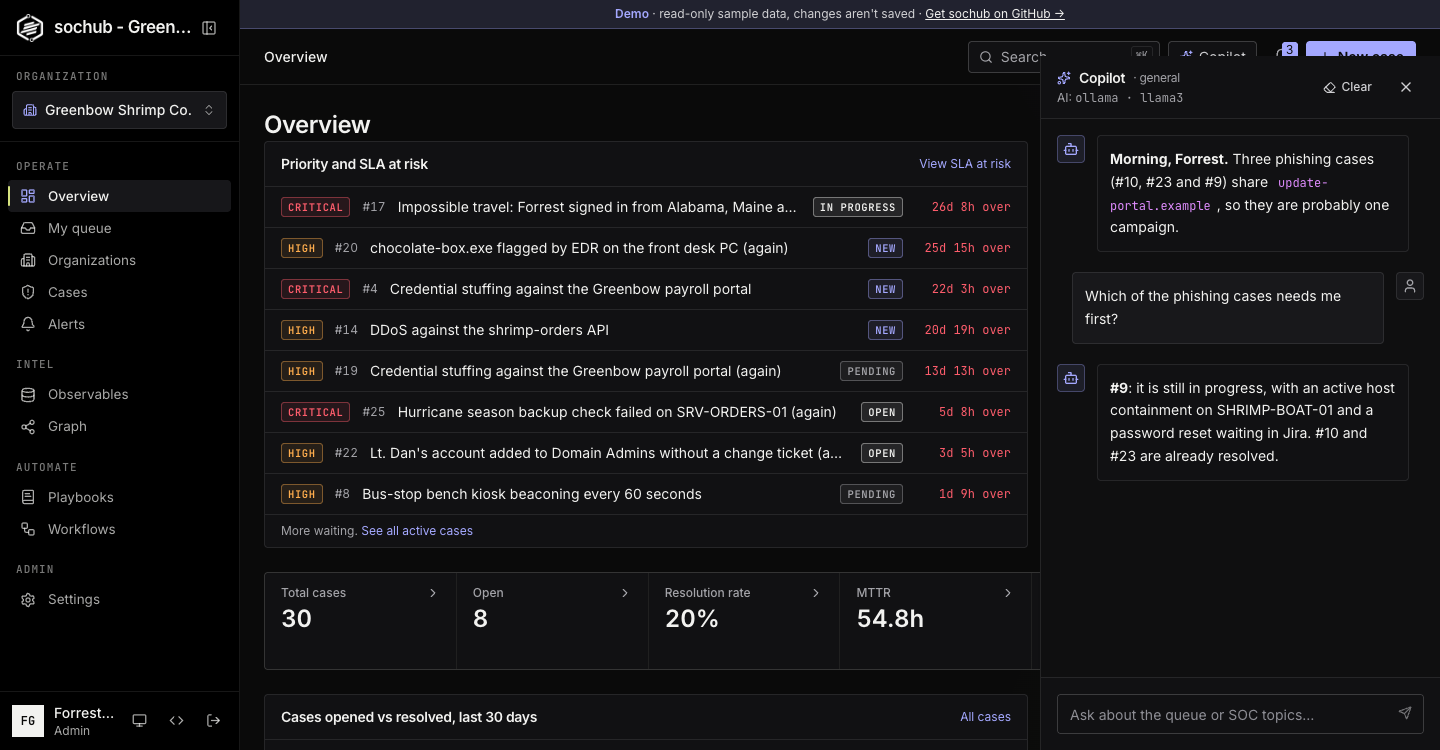
The Copilot button opens an assistant that knows where you are. On a case page it has the full case context; elsewhere it is an assistant for the organization. Conversations are kept per case and as one general session; Clear starts over.
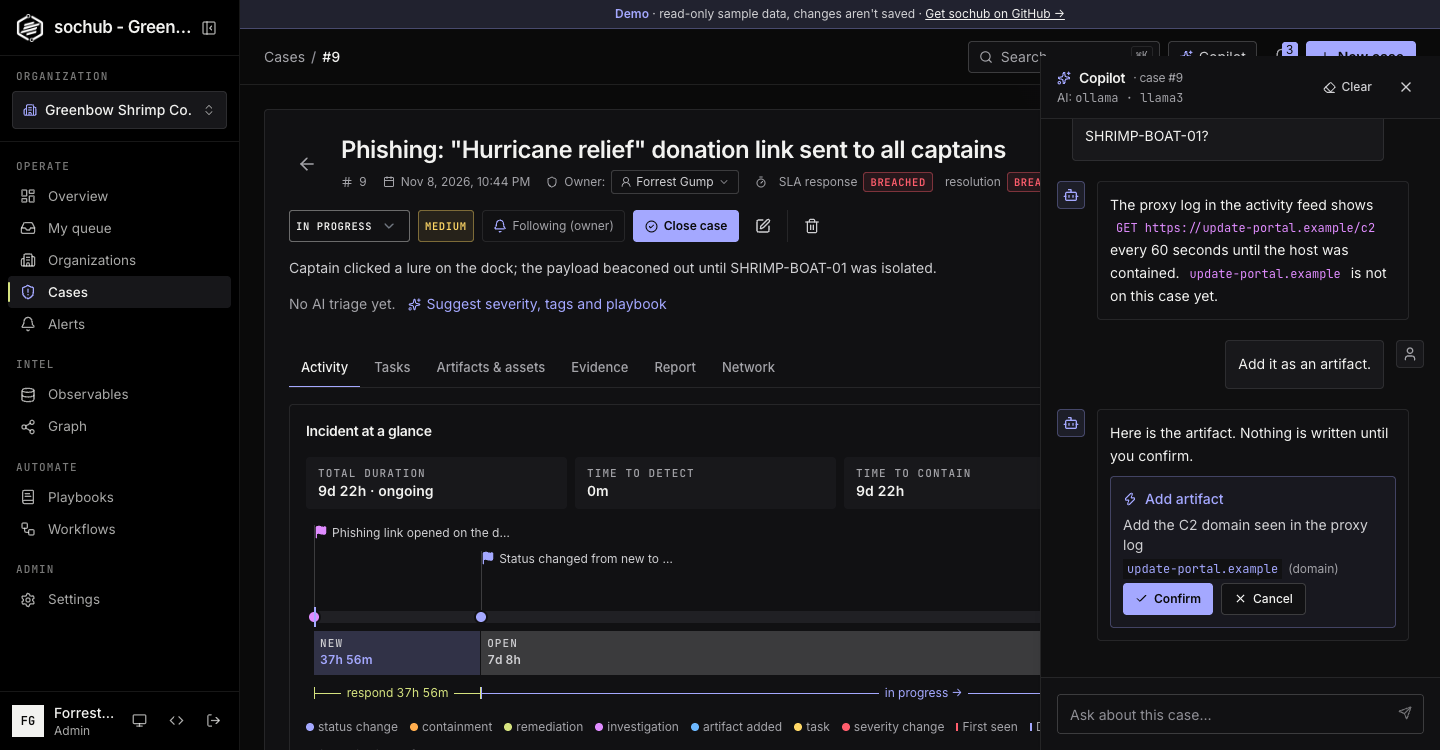
- It proposes, you confirm. When you ask it to do something (create a case, add an artifact, add a note, update a case, find related cases), it shows an action card with exactly what will be saved. Nothing is written until you press Confirm.
- Notes are taken literally. “Add a note: user confirmed the login” records exactly your words.
- Suggestions. It notices indicators in the conversation that are not on the case yet and offers to add them, and offers to record findings in the activity feed.
- Paste logs or alert bodies freely: the box keeps line breaks (Enter sends, Shift+Enter adds a line).
AI elsewhere in the product
- AI triage on a case suggests severity, tags and a playbook.
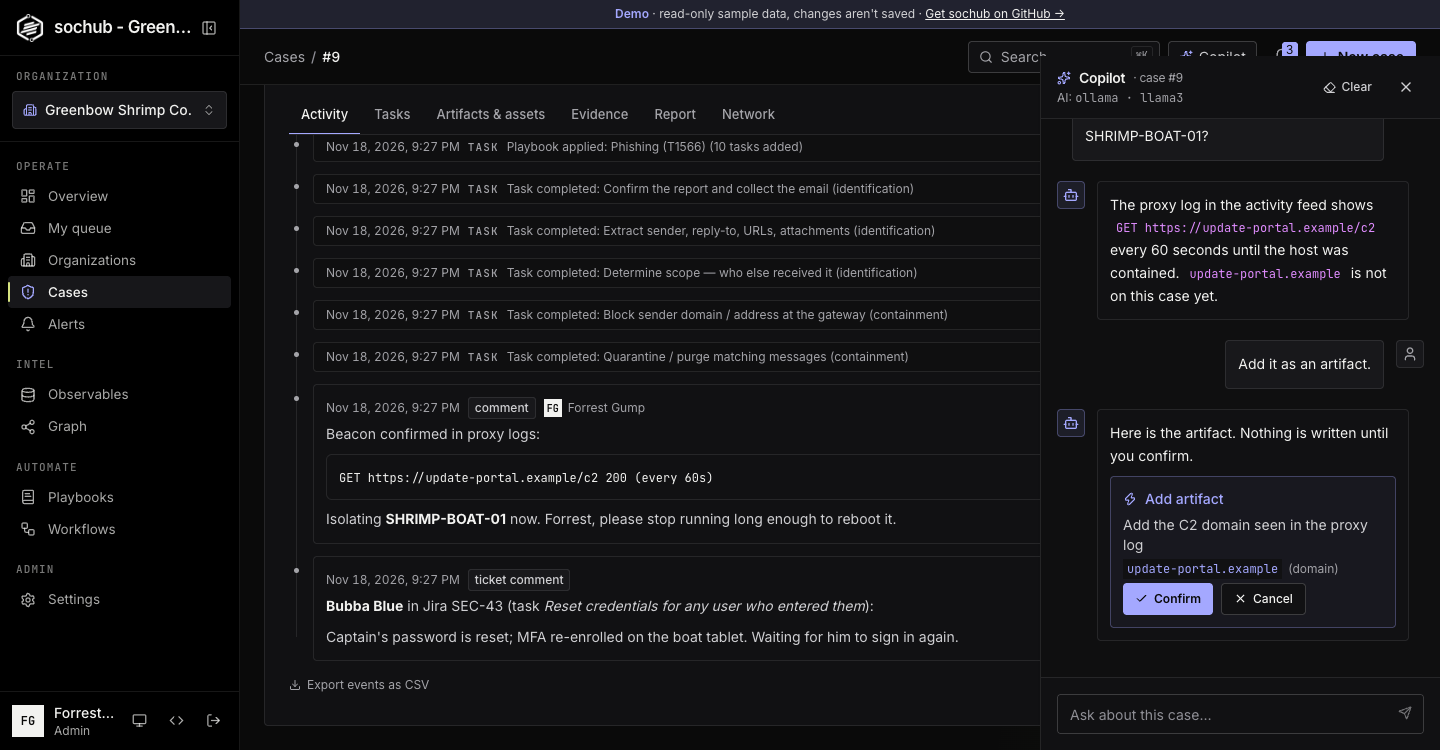
- Suggest in the Activity tab drafts investigation events from alerts and notes.
- Draft with AI on the Report tab proposes report text.
In every case the AI drafts and you decide; nothing is saved without review.
AI providers
By default the AI runs on a local model (Ollama) inside your installation, so case data never leaves it. An admin can switch the organization to OpenAI, any OpenAI-compatible server (vLLM, LM Studio), Anthropic, Gemini, Vertex AI or AWS Bedrock in Settings → Integrations → AI provider, and check it with Test connection. Credentials are stored encrypted and can’t be read back. The Copilot header shows which provider and model are in use.
AI clients (MCP)
Admins can turn on Settings → AI clients (MCP) so members connect Claude Code, Claude Desktop, Cursor or other MCP clients to sochub. After a browser sign-in and consent, the client gets tools for an analyst’s daily work (alerts, cases, notes, artifacts, IOCs, tasks and their workflows, enrichment, triage, tickets) and, for admins, authoring playbooks and workflows, always with the signed-in person’s current role.
Anything that could hide alerts or run on its own (workflows, suppression rules) is saved disabled for a person to review and enable. Changes made this way show “via MCP” in the case activity and in the audit log, and people can revoke connected apps at any time.
Found a mistake? Edit this page or open an issue on GitHub.