Integrations
Slack and war rooms
Connect your own Slack app, work cases from Slack, page responders, and run each incident in its own war room channel.
sochub connects to your own Slack app. With it, analysts create and update cases from Slack, responders get a live card when something serious happens, and each incident can get its own private war room channel that stays in sync with the case.
How it connects
sochub uses Slack Socket Mode: the slack-socket service opens an outbound connection to Slack, and commands,
button clicks and forms arrive over it. You don’t need a public URL or an inbound firewall rule. Messages sochub
sends (cards, alerts, direct messages) are ordinary HTTPS calls to the Slack API.
If you prefer Slack to call sochub over HTTPS instead, use the signing secret and request URLs (HTTP mode); every request is verified with the signing secret.
Setup
- At api.slack.com/apps, choose Create New App → From a manifest and paste the manifest from the repository.
- Install to Workspace and copy the Bot User OAuth Token (
xoxb-…). - Under Basic Information → App-Level Tokens, generate a token with the scope
connections:writeand copy it (xapp-…). - In sochub, open Settings → Integrations → Slack, paste both tokens and a default channel (for example
#soc-alerts), Save, then Test. Test checks both tokens and posts a message in the channel; within about 30 seconds the card shows socket connected. - Optionally set a responder alerts channel and the minimum severity to page on, and the war room naming convention.
- Run
/invite @sochubin every channel that workflows or responder alerts post to.
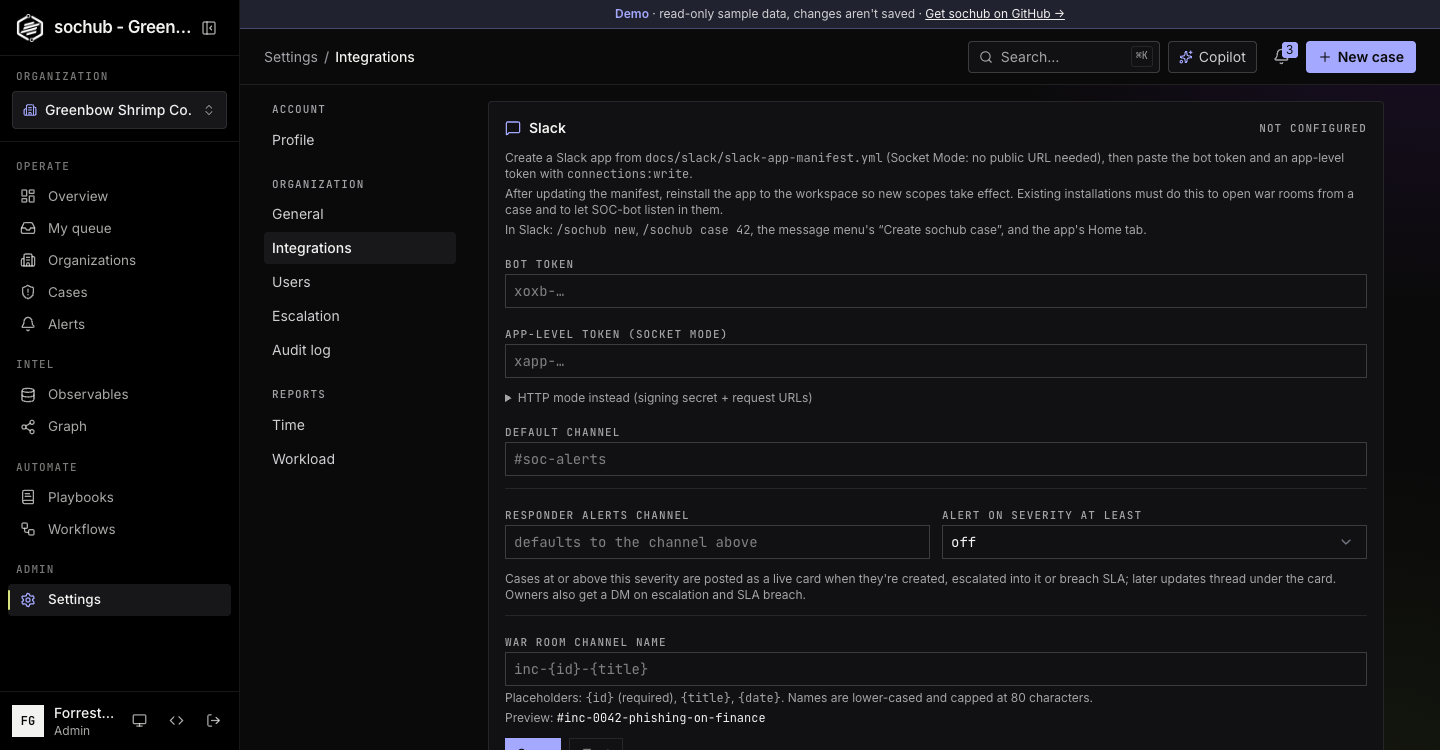
After updating the manifest, reinstall the app to the workspace: new permissions only take effect after a reinstall. Tokens are stored encrypted, and adding, rotating or removing a token takes effect within 30 seconds.
Who can act from Slack
Everyone acting from Slack must be linked: the email on their Slack profile must belong to an active analyst or admin of the organization the workspace is connected to. Anyone else gets a short explanation and nothing happens. Actions taken in Slack are recorded on the case like actions in the web app.
Working cases from Slack
| Feature | How |
|---|---|
| Create a case | /sochub new [title] opens a form (title, severity, description, assign to me). The Create sochub case message shortcut (⋯ menu on any message) prefills it from the message and links back to it. |
| Look up cases | /sochub case 42 shows the case card only to you; /sochub mine lists your open cases. |
| Case card actions | Acknowledge, Assign to me, Assign…, Add note, Severity, War room, Close and Open in sochub. The card redraws itself after each action. |
| App Home | The app’s Home tab shows your open cases with actions and a New case button. |
Responder alerts and direct messages
- Responder alerts. Cases at or above the minimum severity are posted to the alerts channel as a live card when they are created, when they escalate into that severity, and when an SLA is breached. Follow-ups are threaded under the card, and the card updates in place as the case changes.
- Direct messages. Mentions, assignments and SLA breaches arrive as a DM with the case card (by email when Slack isn’t connected). The owner is also told when their case’s severity goes up. Comment text is never sent.
War rooms
A war room is a private Slack channel for one case, where responders talk while sochub keeps the case and the channel in step.
Opening one. Use Open war room in the case header, or War room on the case’s Slack card. The channel
name follows the naming convention, inc-{id}-{title} by default (placeholders {id}, {title} and {date}),
and can be edited before opening. sochub then:
- creates the private channel and invites the case owner, the followers and the person who opened it;
- posts the case card in the channel;
- records the opening in the case activity, and shows a War room link in the case header.
Staying in sync. Cards in the room update when the status, severity or owner changes, when an SLA is breached, when a task is completed, when a workflow run finishes (with a link to the run) and when containment is confirmed. Responders can act from the card without leaving the channel.
SOC-bot listening (optional). Turn it on when opening the room, or later from the case page. SOC-bot reads the channel and suggests:
- indicators mentioned in the conversation (IPs, domains, hashes, hostnames, usernames), and
- incident milestone times (first seen, detected, contained, recovered),
as a thread reply with Add and Dismiss buttons. The same suggestions appear on the case page. Nothing is added to the case until an analyst confirms, so the conversation stays free-form and the case stays accurate.
Slack in workflows
Workflows can post to Slack and ask questions there:
- Slack message posts a templated message, optionally with the case card buttons.
- Ask user (Slack) sends a person a direct message with answer buttons and pauses the run until they click or the time runs out, for example “Was this sign-in you?”. The answer is available to the next steps; see Ask the user on Slack from a case task.
Troubleshooting
| Symptom | Cause |
|---|---|
not_in_channel |
Invite the bot to the channel. |
restricted_action |
Workspace settings stop the bot from creating channels or inviting people; ask a workspace admin. |
missing_scope on war rooms or /sochub |
The app was created from an older manifest: apply the current one and reinstall the app. |
| Card says socket not connected | The slack-socket service isn’t running, or the app-level token is wrong or revoked. |
/sochub says dispatch_failed |
Socket Mode: the slack-socket service is down. HTTP mode: the commands URL isn’t reachable. |
| No responder alerts | Minimum severity is off, the case is below it, or the bot isn’t in the alerts channel. |
Found a mistake? Edit this page or open an issue on GitHub.