Workflows
Workflows overview
Automate case and alert handling in sochub with event-driven, scheduled or on-demand workflows built from a graph of steps.
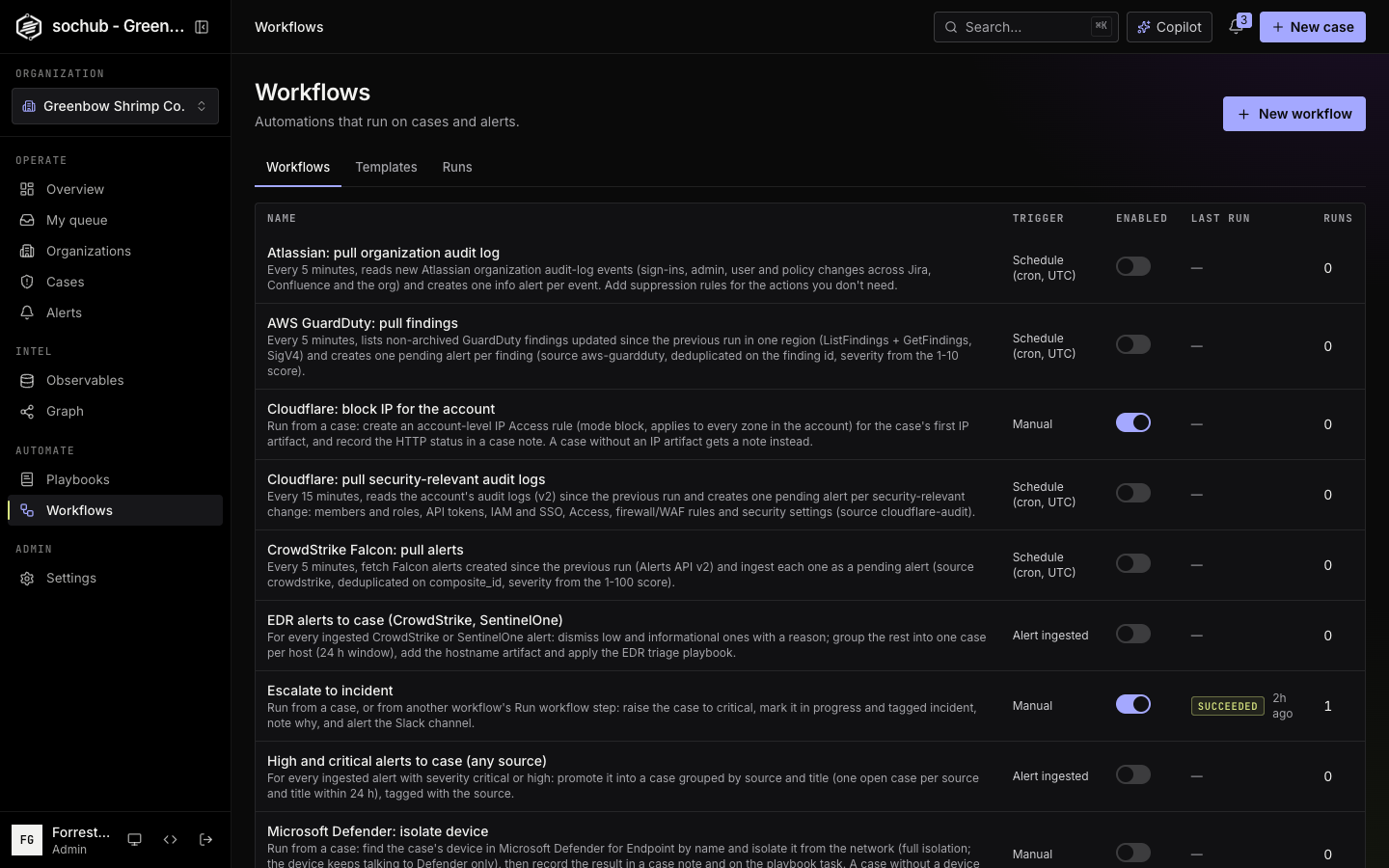
A workflow is a small graph of steps that sochub runs for you. It starts from one trigger (a case is created, an alert arrives, a schedule fires, an analyst clicks Run), optionally checks a filter, and then runs its steps: update the case, add notes and artifacts, call an API, post to Slack, ask a user to confirm something, create or promote alerts.
Workflows live on the Workflows page. Each organization has its own workflows, secrets and run history.
Who can do what
| Role | Can do |
|---|---|
| Admin | Create, edit, delete, enable and disable workflows; install templates; dry-run; manage secrets and the HTTP allowlist. Everything an analyst can do. |
| Analyst | Open workflow graphs and run details; run enabled manual workflows on a case or from a case task; cancel a running or waiting run. |
| Viewer | See the workflow list and run summaries. |
Building a workflow
- Go to Workflows and click New workflow, or start from a template (see Templates).
- Pick the trigger in the left panel and, if needed, a filter.
- Add nodes from the Nodes palette (click to add, or drag onto the canvas).
- Connect them: drag from a node’s output to the next node’s input.
- Select a node to edit its settings in the Inspector on the right.
- Click Save (Ctrl+S / Cmd+S). Saving never enables a workflow.
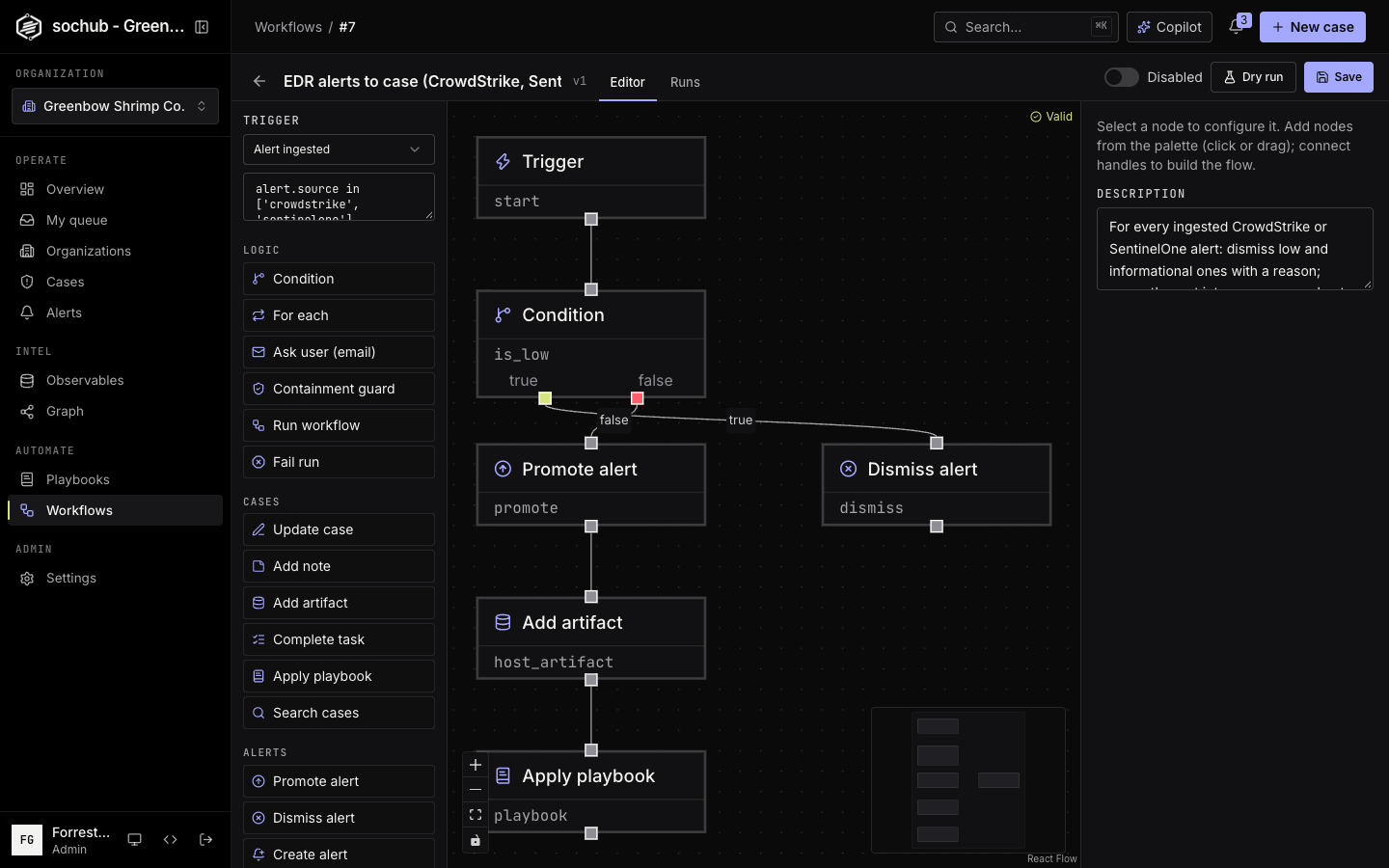
Each node has a node id (lowercase letters, digits and _). Later steps read a node’s result as steps.<node id>.output, so give nodes short, meaningful ids such as lookup or ask.
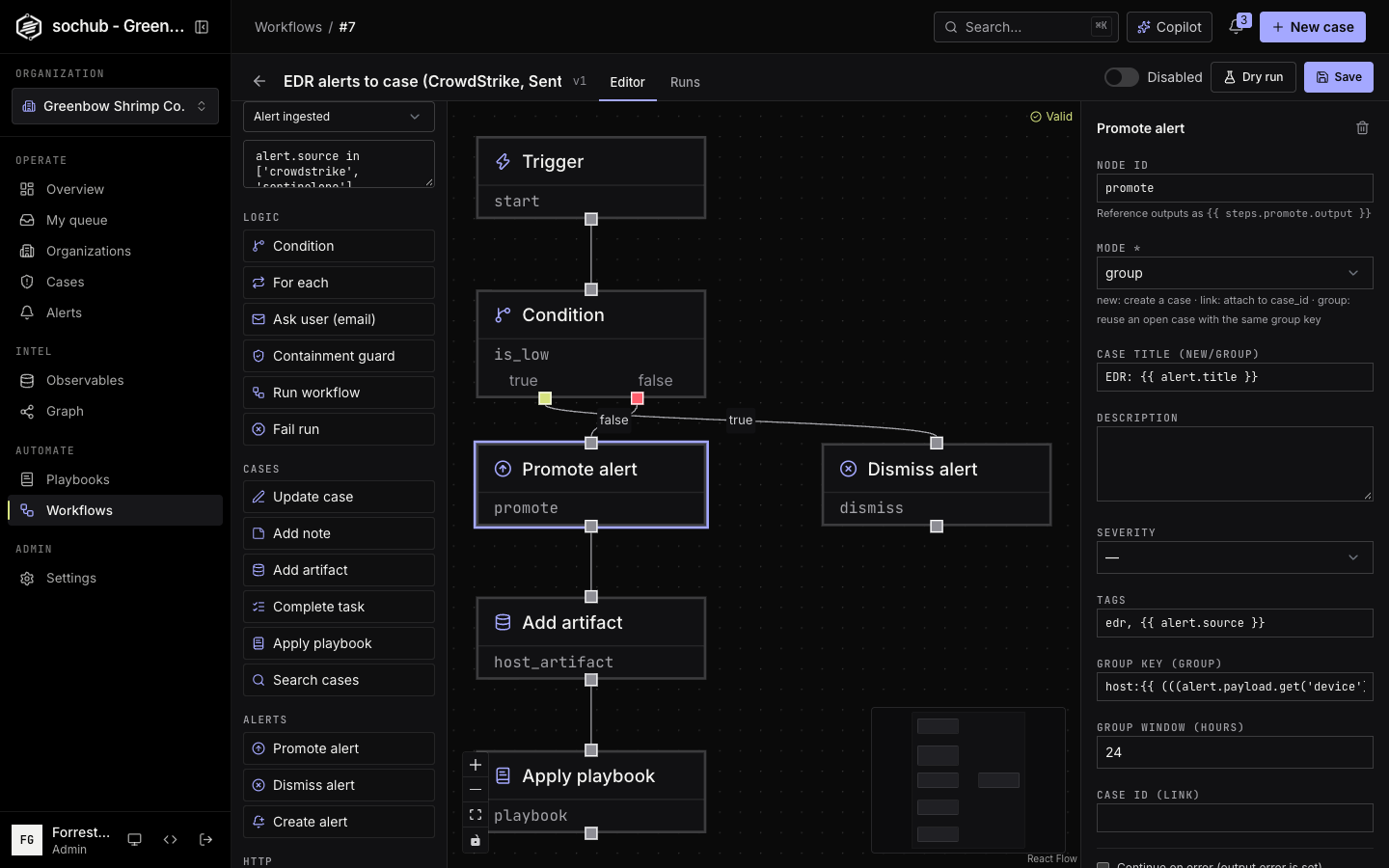
The node reference is in Workflow nodes. How to write filters and templates is in Filters, templates and pulling data.
Triggers
Every workflow has exactly one trigger.
| Trigger | Fires when | What the run gets |
|---|---|---|
Case created (case.created) |
A case is created, by a person or by a workflow. | case |
Case updated (case.updated) |
A case’s fields change (status, severity, tags, owner and others). | case, and trigger.changes with one {from, to} entry per changed field |
Alert ingested (alert.ingested) |
A new alert arrives through a webhook or is created by a workflow. | alert (source, title, severity, payload, …) |
Schedule (cron, UTC) (schedule) |
The cron expression matches (checked every minute). | trigger.fired_at, trigger.since, trigger.since_ms; no case or alert |
Manual (manual) |
An analyst runs it on a case, from a case task, or another workflow starts it with Run workflow. | case |
Three more triggers exist for specific features: Email received (a mailbox set up for email intake receives a message; the message is in trigger.email), Case escalated and Escalation closed (escalation details are in trigger.changes.escalation).
Case updated: trigger.changes
For case.updated, trigger.changes lists only the fields that changed. Values are plain strings:
trigger.changes.severity→{from: 'high', to: 'critical'}trigger.changes.status→{from: 'new', to: 'in_progress'}trigger.changes.tags→{from, to, added, removed}- An owner change appears as both
owner_idandassignee({from, to}user ids).
A field that did not change is not in trigger.changes, so check for it first: 'severity' in trigger.changes and trigger.changes.severity.to == 'critical'.
Schedule: cron and trigger.since
A schedule workflow has a Cron expression (UTC) instead of a filter. It uses the standard five fields: minute, hour, day of month, month, day of week. Ranges (1-5), lists (0,30) and steps (*/15) work; month and weekday names do not.
| Cron | Runs |
|---|---|
*/5 * * * * |
Every 5 minutes |
0 */6 * * * |
Every 6 hours, on the hour |
30 7 * * 1-5 |
07:30 UTC, Monday to Friday |
Each scheduled run gets trigger.since: a UTC timestamp (YYYY-MM-DDTHH:MM:SSZ) to use as the start of the time window when you pull from a vendor API. It is the fire time of the last successful run of this workflow, minus a 10-minute overlap, and never more than 24 hours back. On the first run it is one hour back. Because a failed run does not move the window forward, the next run reads the same events again. Use the Create alert node to ingest them: it skips alerts it already created, so overlap does no harm. trigger.since_ms is the same instant in UNIX epoch milliseconds.
The trigger filter
The filter is an optional expression on the trigger. It is checked before a run is created:
- empty: every event starts a run;
- true: a run starts;
- false, or an error (for example a missing field): no run is created.
Examples:
'phishing' in case.tags
case.severity == 'critical'
alert.source == 'EDR' and alert.payload.severity is defined and alert.payload.severity >= 7
'severity' in trigger.changes and trigger.changes.severity.to == 'critical'
In a filter, alert is set only for Alert ingested workflows. For case triggers, use case and trigger. More recipes are in Filters, templates and pulling data.
Graph, edges and branches
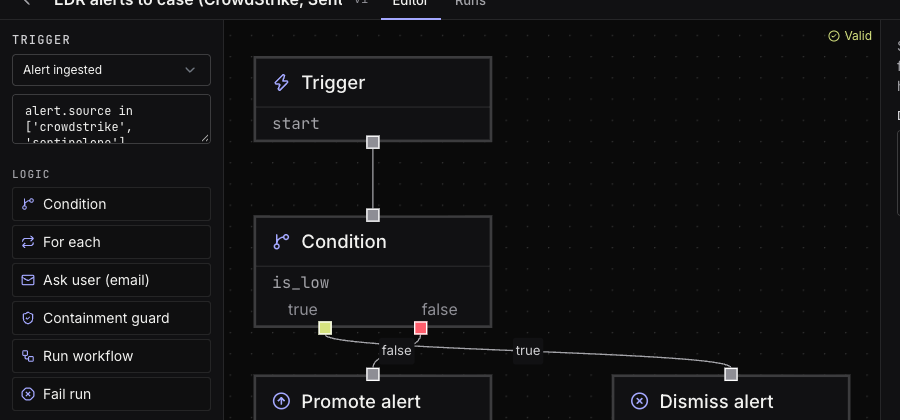
- Every step except the trigger needs an incoming edge. A disconnected step blocks enabling.
- A step runs once all its incoming edges are resolved and at least one of them is active. If none is active, the step is skipped, and steps that depend only on it are skipped too.
- A Condition node has two outputs, true and false. Only the edge from the matching output is followed.
- A For each node is a box: drop steps inside it to run them once per item.
- The graph cannot contain cycles. A workflow can have at most 50 nodes.
Failures
If a step fails, the run fails and pending steps are cancelled. To keep going, tick Continue on error on the step: it then succeeds with output.error set, and later steps can check it.
An HTTP request that gets a 4xx answer does not fail; the status is in output.status so you can branch on it. Network errors, timeouts and 5xx answers are retried (by default twice, after 10 s and 60 s).
Enable, disable and validation
New workflows and installed templates start disabled. Only enabled workflows react to triggers.
An admin enables a workflow with the switch on the Workflows list or in the editor. Enabling validates the saved graph and refuses it, with a list of problems, if for example:
- a required field is empty, or a template or filter has a syntax error;
- a step is not connected, or there is a cycle;
- a Condition edge does not leave from its true or false output;
- Promote alert or Dismiss alert is used in a workflow whose trigger is not Alert ingested;
- a secret is unknown or used outside an HTTP request;
- the workflow contains a plaintext credential (see Secrets).
You can save an invalid workflow while you work on it. The editor shows Valid when the graph passes.
Dry runs
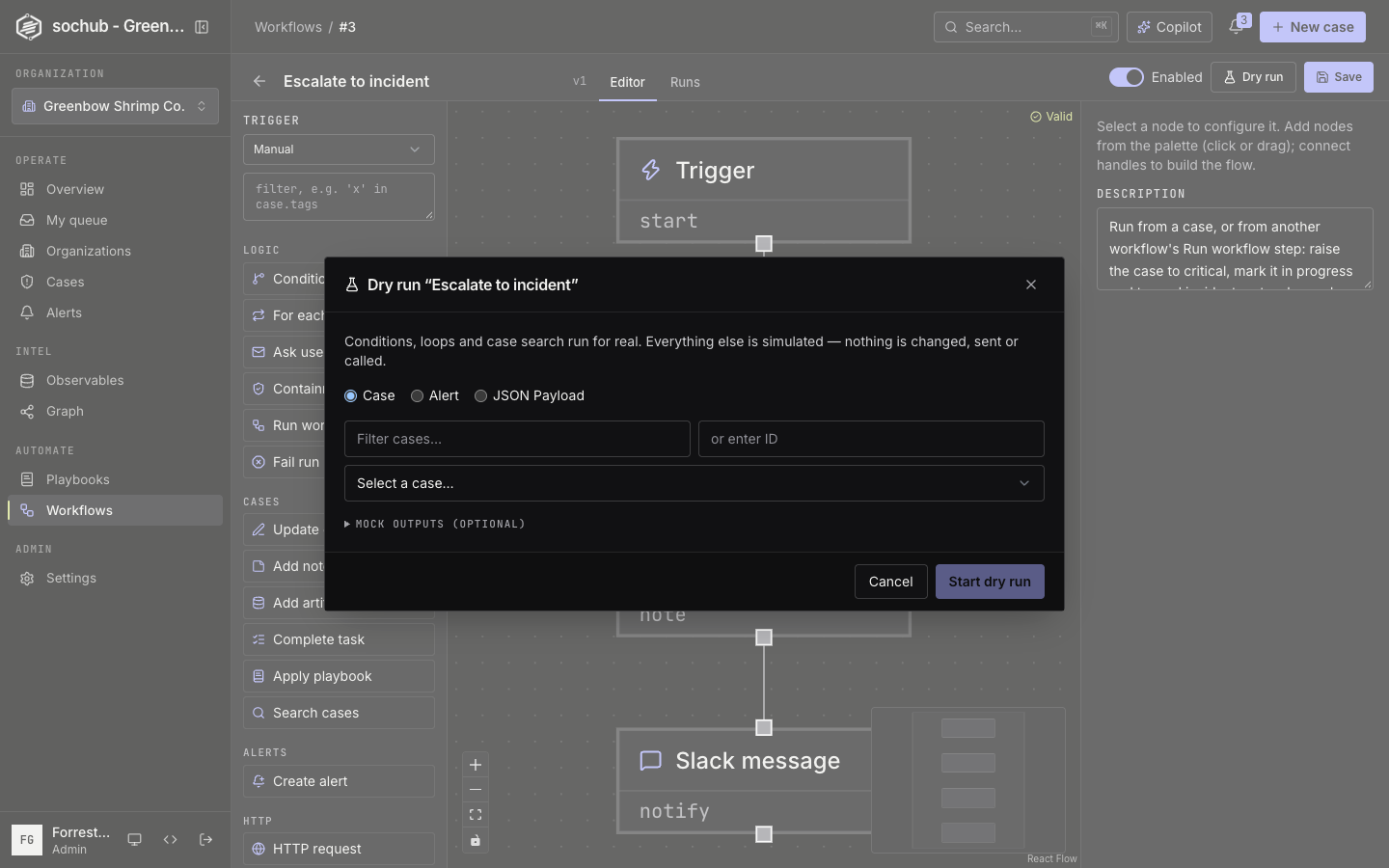
A dry run shows what a workflow would do, without doing it. Admins click Dry run in the editor (it uses the last saved version, enabled or not) and choose what to run against: a case, an alert, or a JSON payload.
- Trigger, Condition, For each, Search cases, Fail run, and all templating run for real.
- Steps that change something are simulated: case and alert actions, Slack and email messages, Run workflow, and HTTP request (unless the step has Really execute during dry runs ticked, meant for read-only lookups). Each simulated step records the fully rendered input it would have used under would do.
- A simulated step returns a mock output: the one you enter in the dry-run dialog, else the node’s dry-run mock output, else a stub (an HTTP request returns status 200 and an empty body).
- Ask user steps never wait. They answer with the button you pick in the dialog, the first button by default, or a timeout.
- The trigger filter is not checked: the dry run starts directly.
Dry runs are kept in the run history with a Dry run badge.
Runs and history
Each time a trigger fires and the filter passes, sochub creates a run. The run keeps a snapshot of the graph, so editing a workflow does not change runs already in progress.
Run statuses: queued, running, waiting (an Ask user step is waiting for an answer, or a loop is in progress), succeeded, failed, cancelled.
You find runs in three places:
- Workflows → Runs: all runs of the organization.
- The Runs tab of a workflow in the editor.
- The case’s Automation tab: runs on that case.
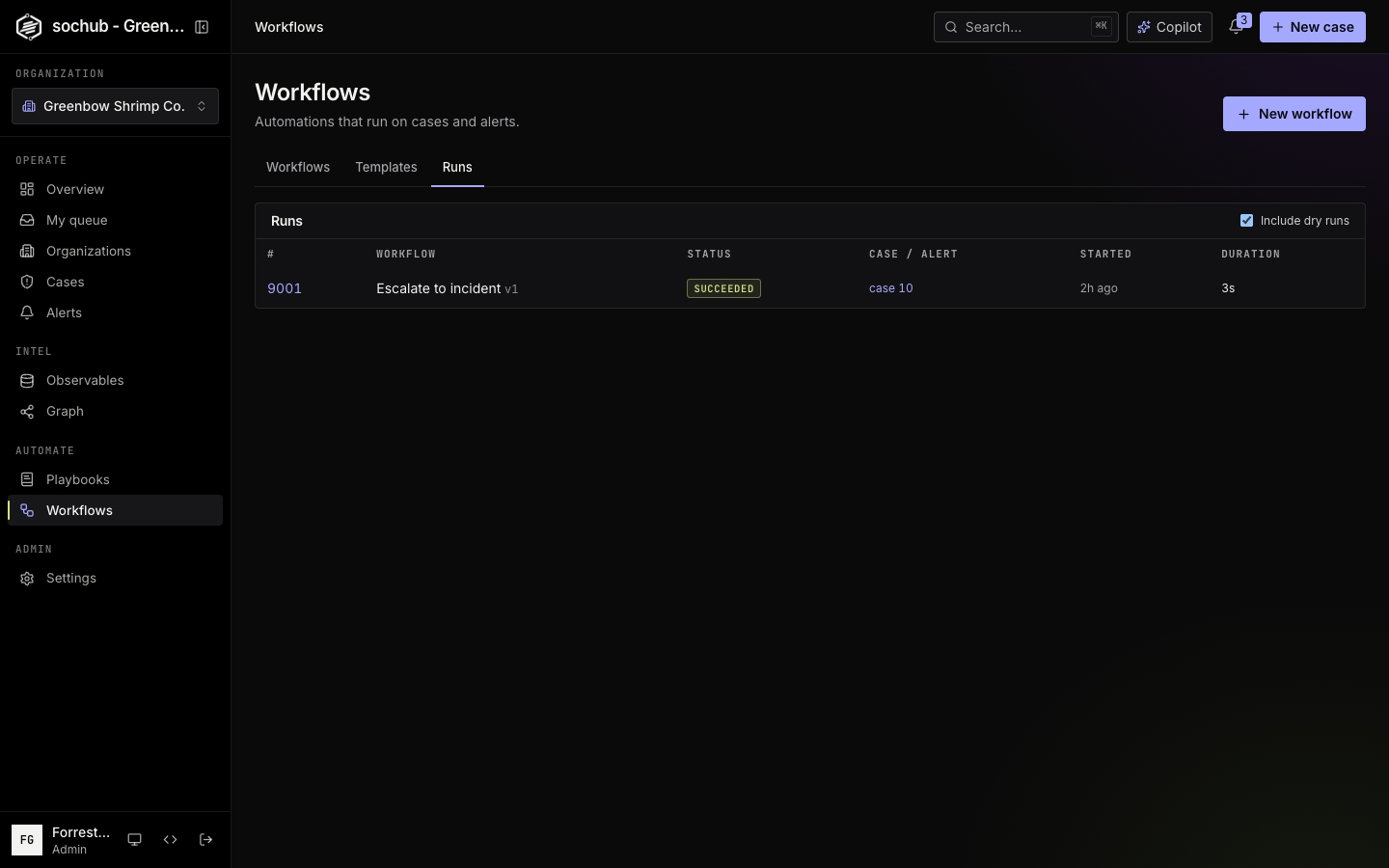
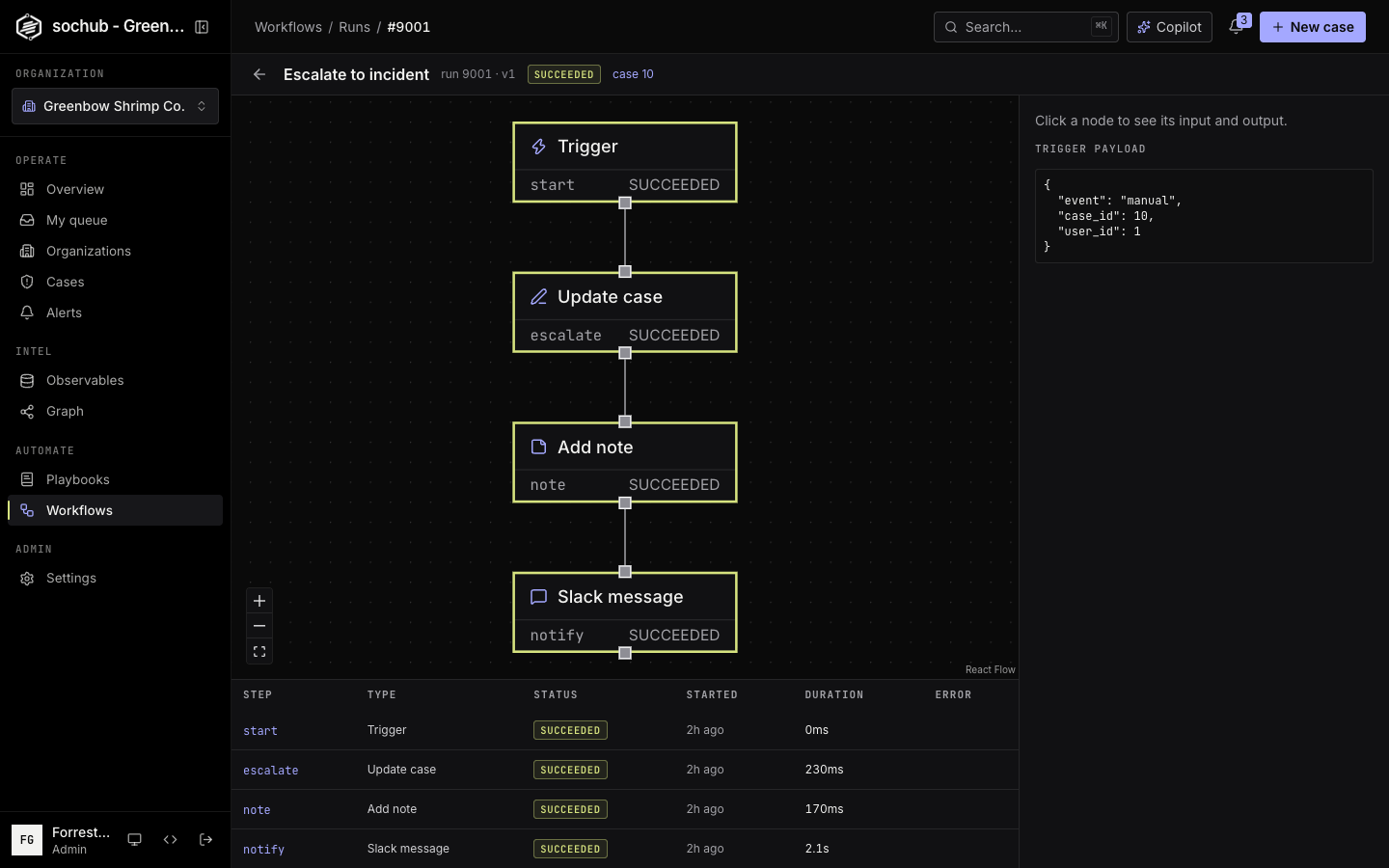
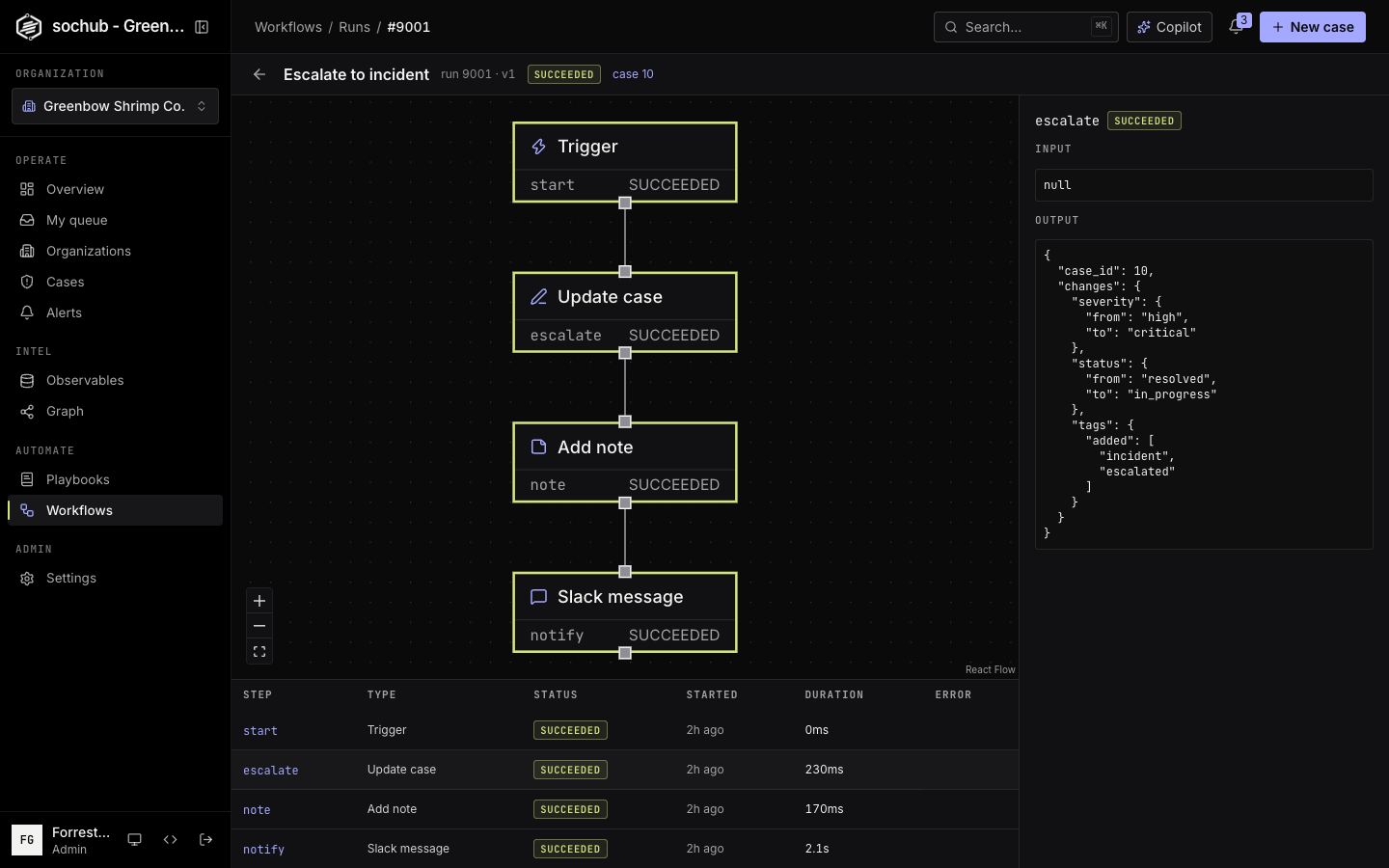
Open a run to see each step’s status, duration and error. Click a node to see its input and output, the trigger payload and, for a loop iteration, the loop item. Each For each item runs as a child run you can open from the parent. Analysts can Cancel run on a running or waiting run.
Templates
Workflows → Templates (admins) lists ready-made workflows: pulls from identity, EDR and cloud vendors, response actions such as suspending a user or isolating a host, paging on escalation, user verification over Slack or email, and alert-to-case routing.
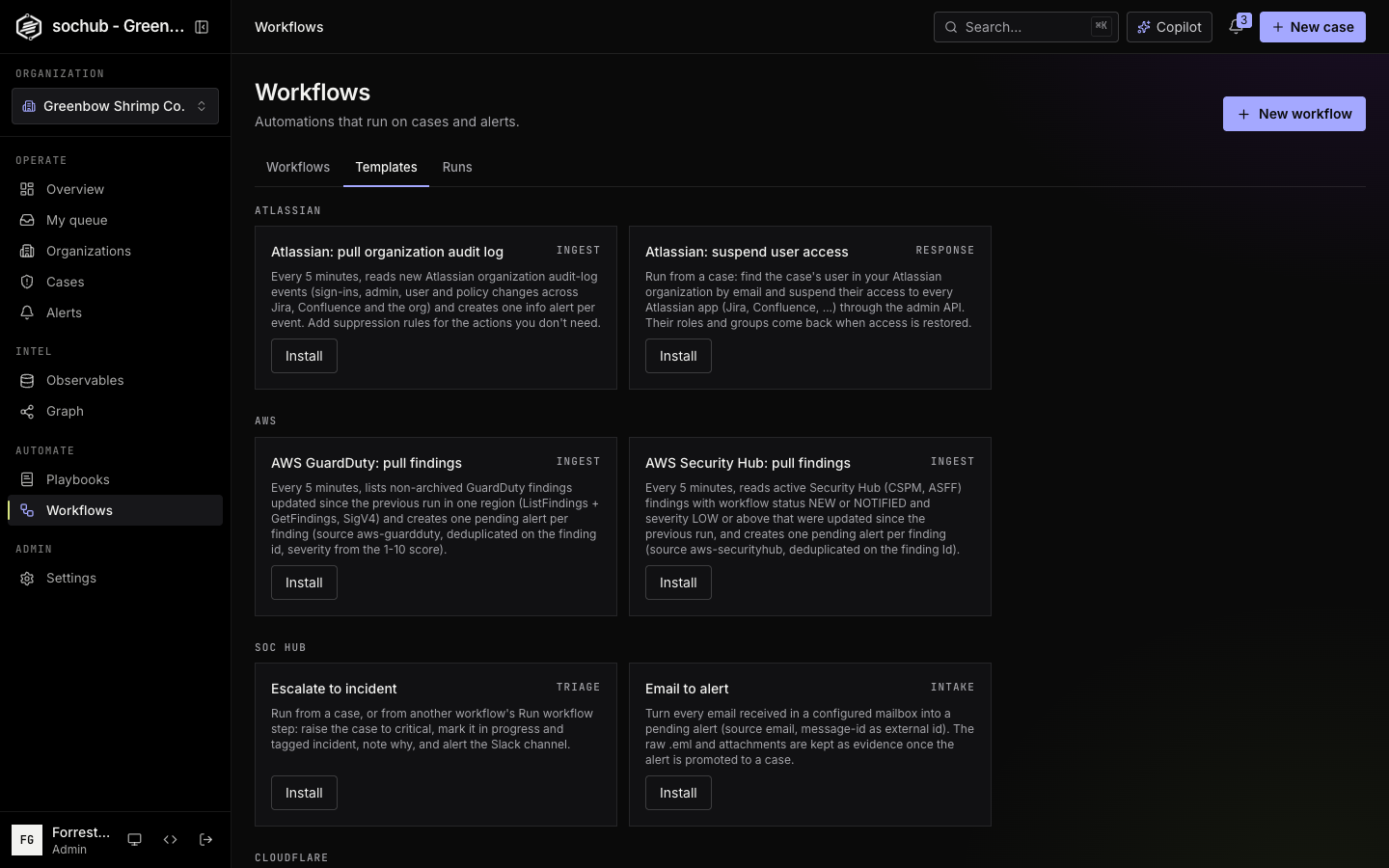
Click Install on a template, fill in its parameters (for example your vendor domain or client ID), and it is added as a disabled workflow. If the template needs secrets you don’t have yet, the dialog lists them with the hosts they must allow, and links to Add secrets. Create them, review the workflow, then enable it.
Running a manual workflow on a case
Manual workflows run when someone starts them.
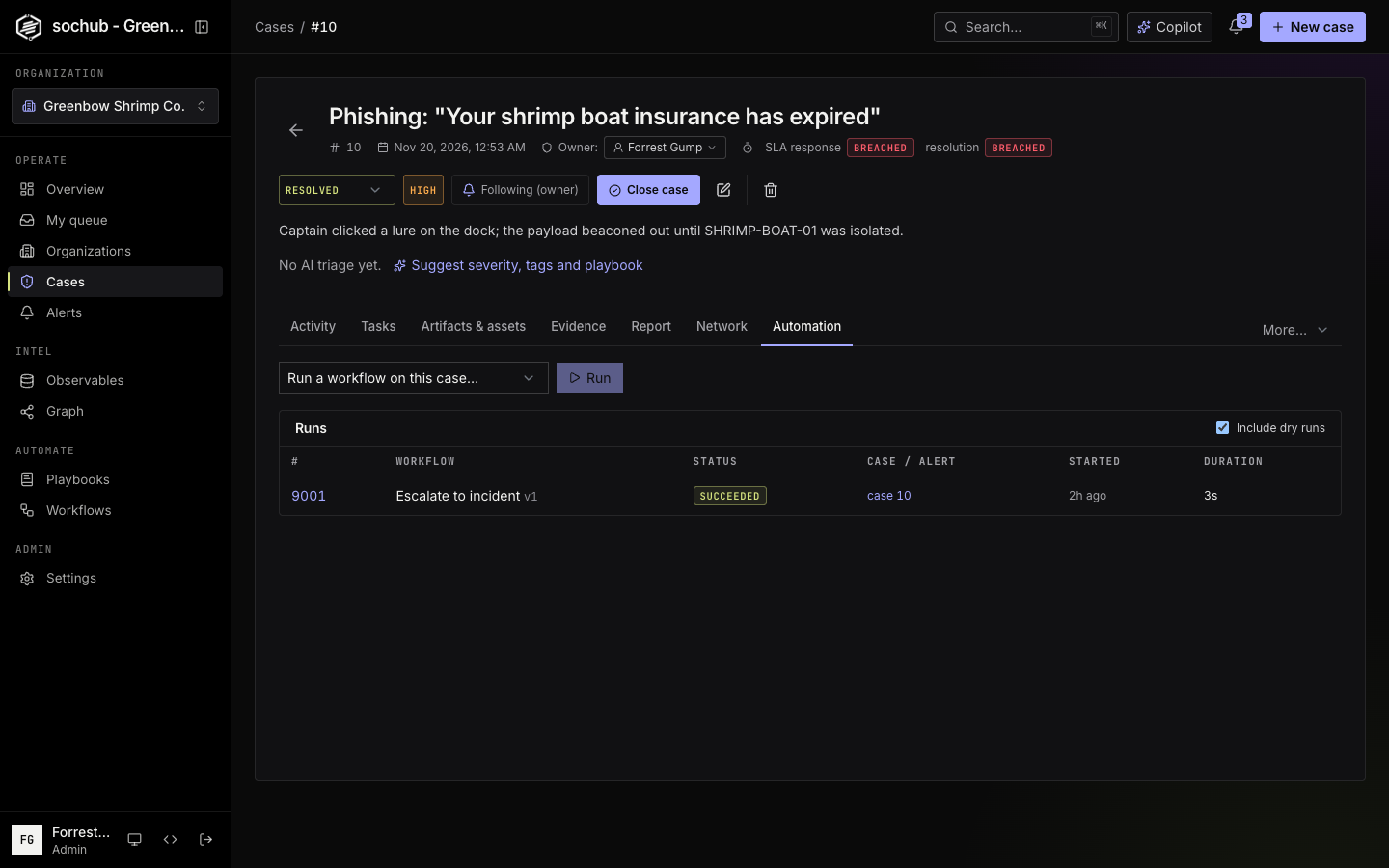
- Open the case and go to the Automation tab.
- Pick an enabled manual workflow in Run a workflow on this case….
- Click Run. You are taken to the run page.
The run’s case is that case, and trigger.user_id is the analyst who started it. Another workflow can also start a manual workflow with the Run workflow node.
Running a workflow from a case task
A playbook task can be linked to a manual workflow, so the analyst working the task can run the automation from the task itself.
- An admin edits the playbook in Playbooks and, on the task, picks Run workflow:
in the automation list. - When the playbook is applied to a case, the task keeps the link.
- On the case’s Tasks tab, the task shows the workflow and a Run button (Run again after the first run), plus Last run with its status.
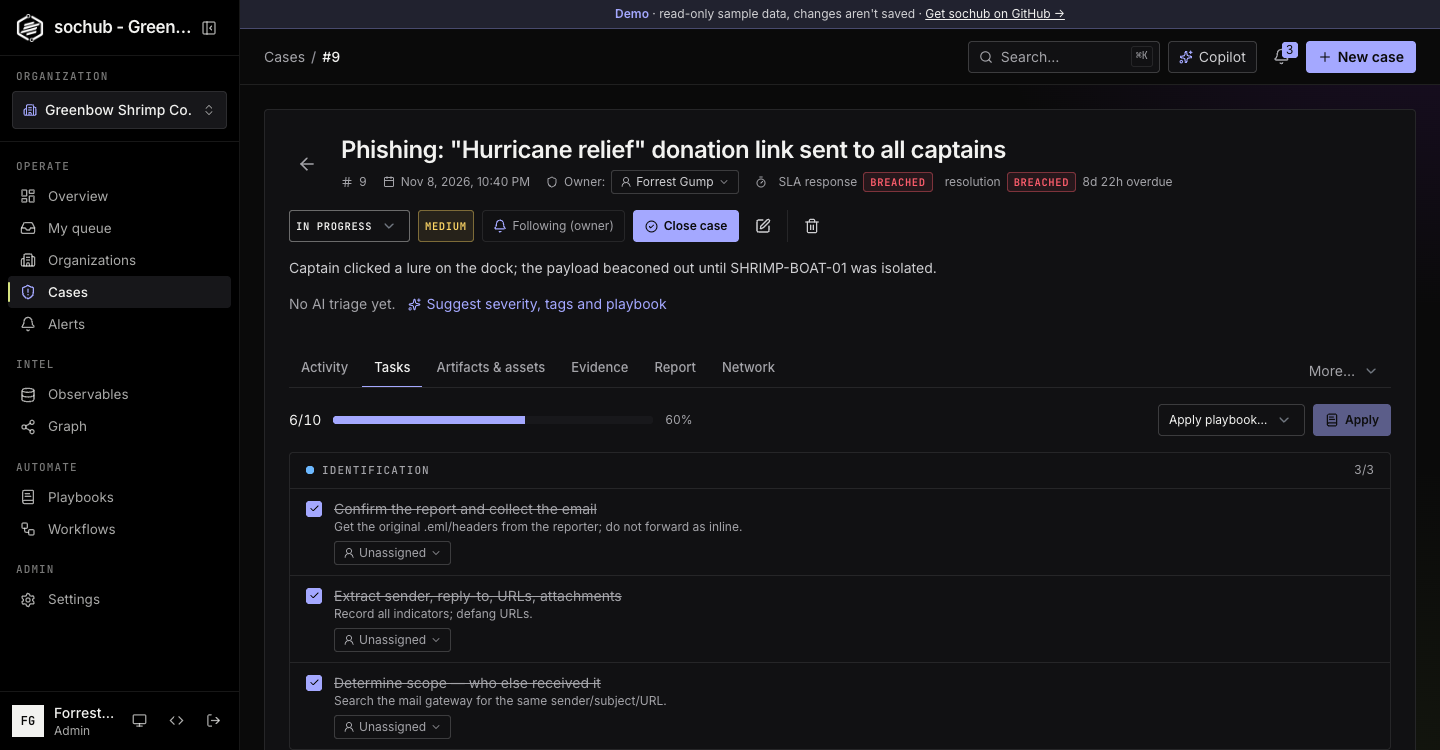
Running from a task adds an activity entry on the case. If the workflow ends with a Complete task step, it records its result on that task (for example Confirmed by alice@example.com on Slack) and ticks it. If the linked workflow is disabled, the task says so and cannot be run until an admin enables it. See example 6.
Secrets in workflows
Never paste API keys, tokens or passwords into a workflow. Store them as secrets and reference them by name.
- An admin adds a secret in Settings → Integrations → Secrets: a name such as
VENDOR_API_KEY(capital letters, digits and_), the value, and the allowed hosts it may be sent to (for exampleapi.vendor.example, or*.vendor.example). - In an HTTP request step, insert it with Insert secret… or type it:
{{ secrets.VENDOR_API_KEY }}.
Rules:
- Secrets work only in the HTTP request URL, Headers, Body and Auth fields.
- A secret is inserted as-is; it can’t go through a filter or be changed in a template.
- A request that carries a secret must use
https://, and its host must be in the secret’s allowed hosts. - Secret values never appear in run inputs, outputs or errors.
If an existing workflow contains plaintext credentials, the Workflows page shows a banner. Review converts them into secrets restricted to the request host and rewrites the workflow to reference them. A workflow with plaintext credentials can’t be enabled.
HTTP requests and the allowlist
The HTTP request node only calls http and https URLs on public addresses. Hostnames that resolve to private, loopback, link-local or other internal addresses (including cloud metadata endpoints) are refused, and redirects are not followed.
To reach an internal system, such as an on-premises tool, an admin can add its hostname to the Automation HTTP allowlist in Settings → Integrations. Entries are hostnames like soar.corp.example.com or wildcards like *.corp.example.com; IP addresses and single-label names are not accepted. The allowlist only takes effect if the platform operator has enabled private allowlisting for the deployment. Loopback and metadata addresses are refused regardless.
Safety limits
- Loop guard: a case created or updated by a workflow can trigger other workflows, up to three levels deep. Deeper events are dropped, which stops loops like A → B → A.
- Run workflow can’t start its own workflow, and one run can start at most 25 workflows across its chain.
- For each runs at most 500 items (100 by default) with up to 20 in parallel; loops can’t be nested.
- An HTTP request times out after 15 seconds and reads at most 1 MB of response.
- A step that runs longer than the worker’s time limit (about two minutes) fails with
step timed out. Ask user steps wait without holding a worker.
Found a mistake? Edit this page or open an issue on GitHub.